


See where you stopped, how long you stayed and the route you took between places. Your journal builds itself on your iPhone as you go about your day.
- Availability
- In preparation
- Price
- 3 days free, then USD 0.99 a month
- App language
- Romanian and English
What you see
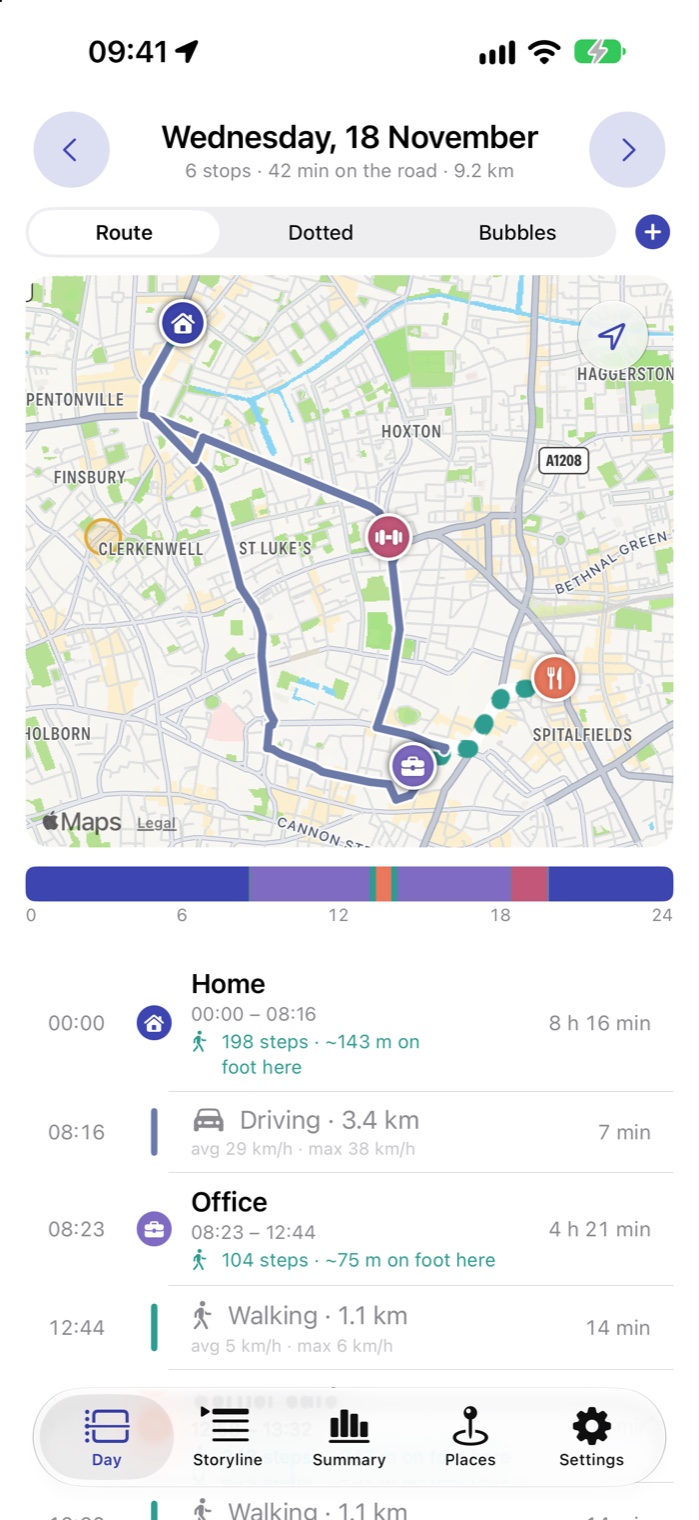
Day
Follow your route and numbered stops on the map. The timeline shows where you were, how long you stayed at each stop and how you got there.
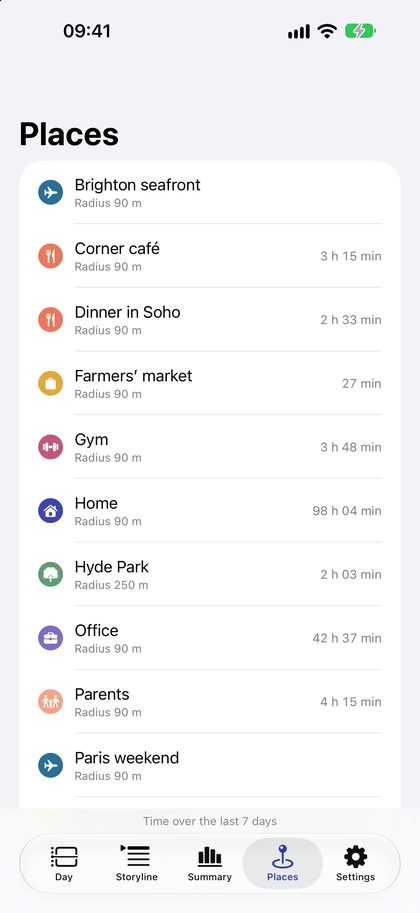
Places
See how much time you spent at home, at work or at the gym over the last seven days. Open Summary for the monthly total at each place.
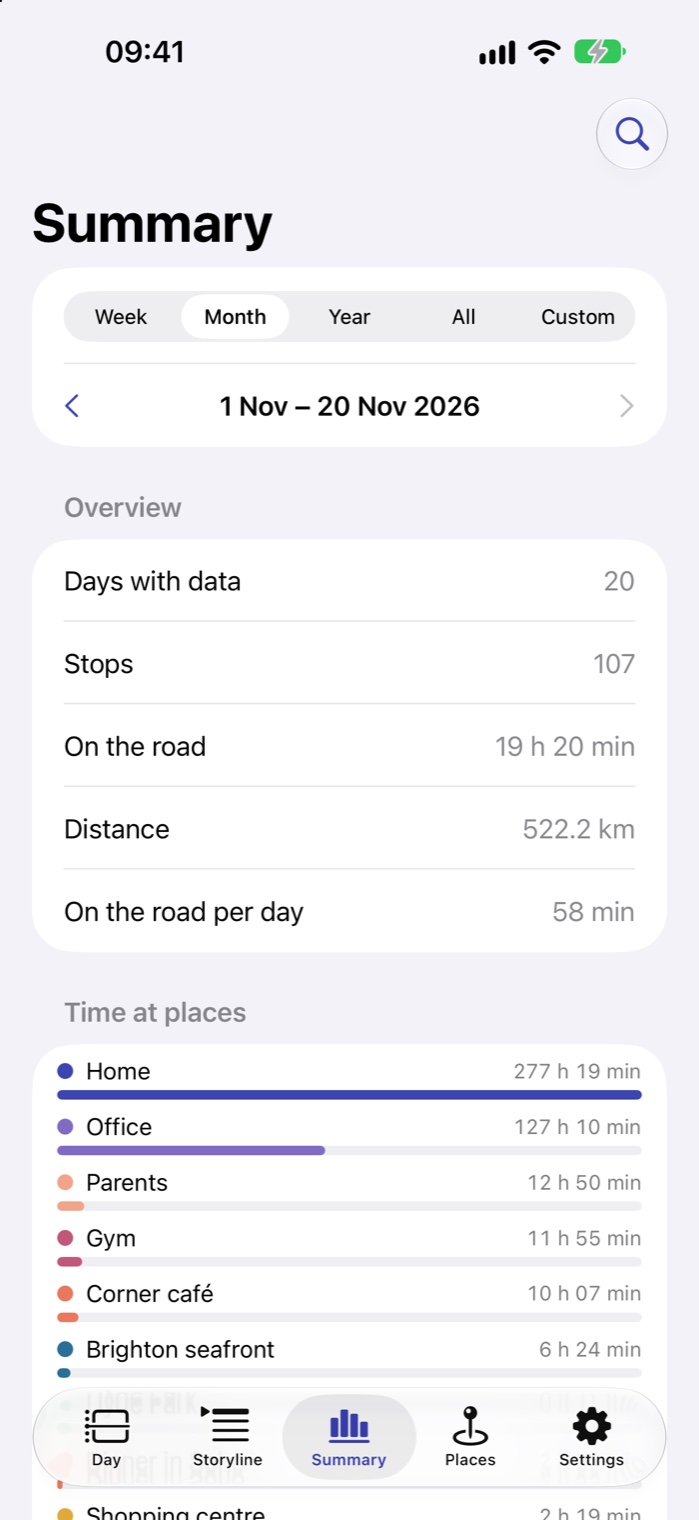
Summary
Choose a week or a month to compare the time you spent at each place with your time on the road.
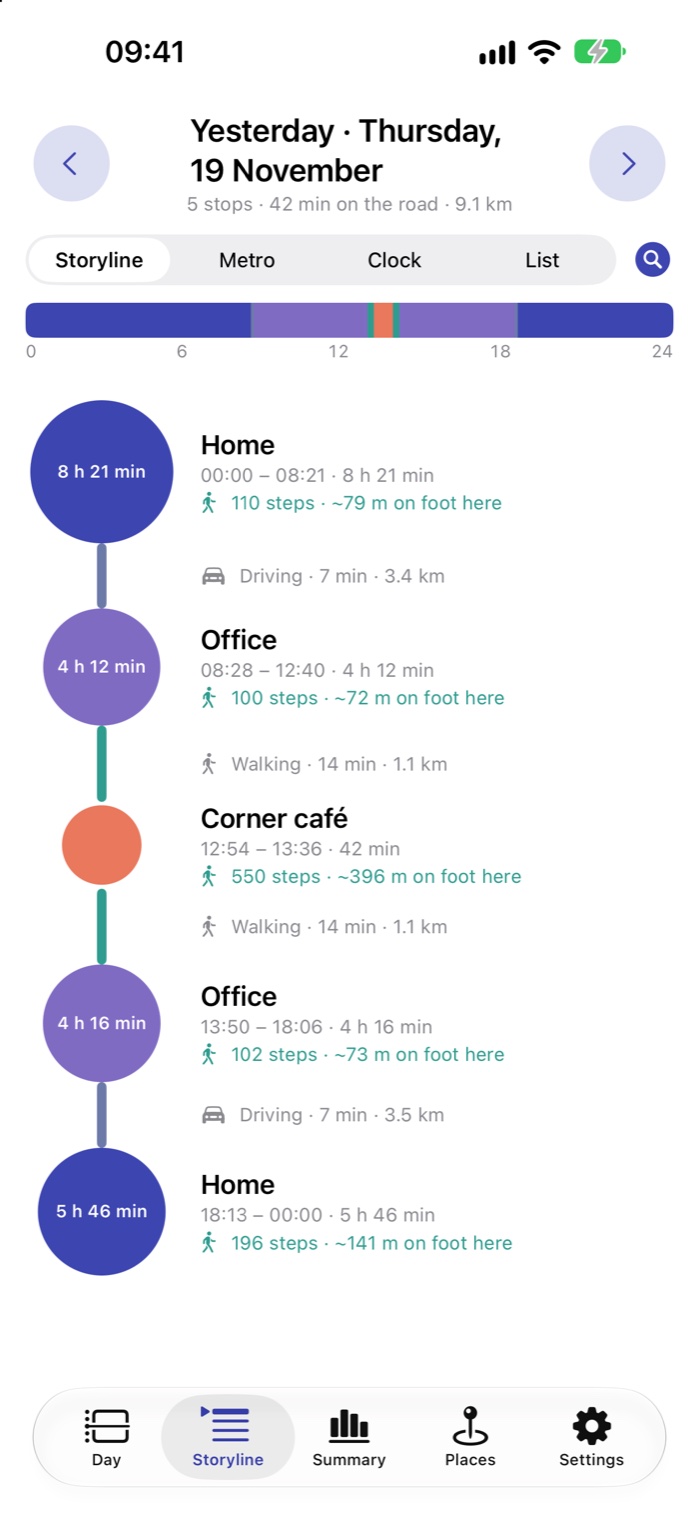
The day in order
Read stops and trips in sequence. Give a familiar place a name you will recognise next time.
From a stop to a familiar place
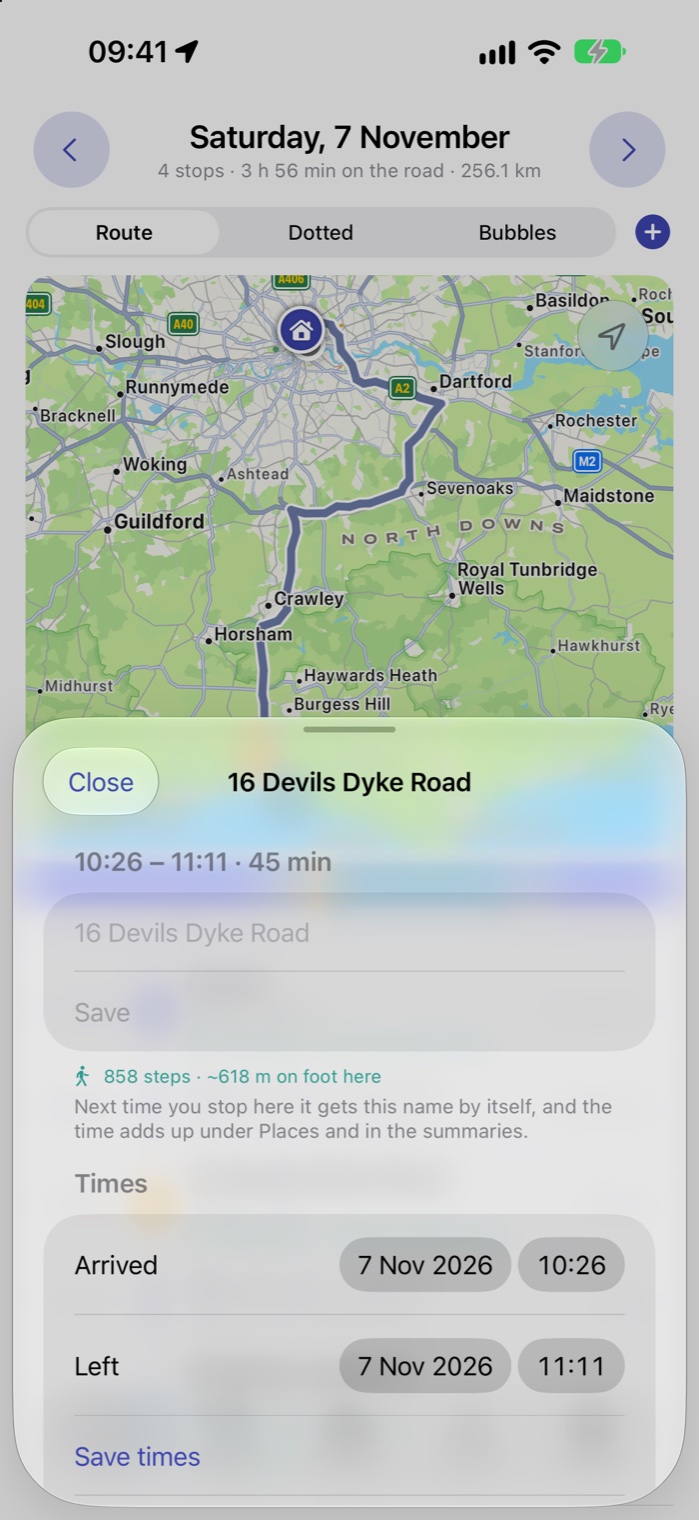
A café you visit every week can have its own name in your journal. Open a stop, name the place and adjust its boundary so Daystops can recognise your next visit.
Set up background recording
Allow location access while using the app, then choose Always when iOS offers it. Keep Precise Location on so nearby stops can be distinguished. Motion & Fitness helps tell a traffic queue from a visit. Leave Daystops in the background when you put the phone away.
Correct a visit or add a note
Tap a stop to adjust its arrival or departure time, merge it with the previous stop, or add a note. If a traffic light has been recorded as a visit, mark it as part of the trip. You can undo a correction.
Choose how GPS uses the battery
Balanced uses GPS while you move and pauses it at a stop. Detailed keeps GPS on through short stops for a finer route and turns it off after 15 minutes in one place; it uses more battery. Economy records arrivals, departures and major changes of location, and Apple Maps draws the trips along the streets (or straight lines, if you turn off Trips on the streets). Compare usage in iPhone Settings under Battery after a typical day.
Using your journal
How do I find a visit from last month?
Open Storyline and use the magnifying glass. Search across days by place name, note, category or city. If you remember the date, open that day and switch between the map, list and clock to see when you arrived and how long you stayed.
What if a stop is missing?
A stop normally needs at least five minutes in the same area. You can add a visit manually from the day view. If gaps recur, check that Precise Location and Always are enabled. Low Power Mode can space out readings, and force-quitting Daystops can interrupt recording until you reopen it.
How do I define a place or see the current stop?
In Places, choose a name, icon and colour. Use a radius for a small site or draw an outline around a larger one, such as a campus. Add the Daystops widget to your Home Screen or Lock Screen to see your current place and the time spent there.
Steps, Apple Health and the Apple Watch
With Motion & Fitness, Daystops counts your steps inside places and keeps them in the day’s files, because the iPhone keeps them only seven days. If you turn on Apple Health (optional, on the last setup screen or in Settings → Permissions), Daystops only reads steps, walking distance and workouts, also from the Apple Watch, to count steps on any day and tell a run or a ride from a walk. Turn it off any time.
What can I see over a longer period?
In Summary, choose a week, month, year or your own date range. Compare time in places with time on the road, see walking distance and revisit the cities and countries you visited. The yearly view also highlights your longest trip and busiest day.
Your journal stays on your iPhone
When Daystops records your day, nothing from your journal is sent from your phone to us. Your routes, stops, saved places and notes are stored on your iPhone.