
How Daystops works
Daystops notes where you stop and where you go, all by itself, so in the evening you can see where your day went. You allow it once; the rest happens in the background.

Getting started in 4 steps
- Open Daystops and, on the last screen, tap “Start the free trial”.You confirm with your Apple Account; you pay nothing for the first 3 days, and the first payment is taken when they end unless you cancel. With “Not now” you can start the trial later, from the Day screen or Settings › Subscription.
- Allow location, then choose “Always”.iOS first asks “While Using the App”. After your first stops, Daystops asks for “Always”. If you skipped it: Settings › Daystops › Location › Always with Precise Location on.
- Allow “Motion & Fitness”.This is how we tell a traffic jam from a real stop. Settings › Daystops › Motion & Fitness The last screen, “Optional”, has notifications, Apple Health and trips on the streets: recording works without them, and each can be changed any time in Settings.
- Keep the phone in your pocket.You don’t need to open the app. Your first full day shows up tomorrow; today’s stops appear right away.
What to turn on, and why
| Setting | Why | |
|---|---|---|
| Location: Always | So stops and trips are noted while the app is closed. With “While Using” they are noted only while it is open. | Required |
| Precise Location | Without it, iOS gives an approximate position (a few km) and stops can’t be told apart. | Required |
| Motion & Fitness | Tells whether the phone is in a car, on foot or still. Without it, a long red light may show up as a place. | Recommended |
| Notifications | Only to warn you if recording stops for 2 hours, and before the trial ends. | Optional |
| Apple Health (at setup or in Settings › Permissions) | Steps, walking distance and workouts, also from Apple Watch, for any day; workouts tell runs and rides apart. Read only; turn it off any time. | Optional |
| Trips on the streets | Where a trip has few points, Apple Maps draws the streets between them; for that, those positions go to Apple. Off: straight lines, nothing is sent. | Optional, on |
What you see
The screenshots come from the app’s demo data (an invented day in London), not from anyone’s day.
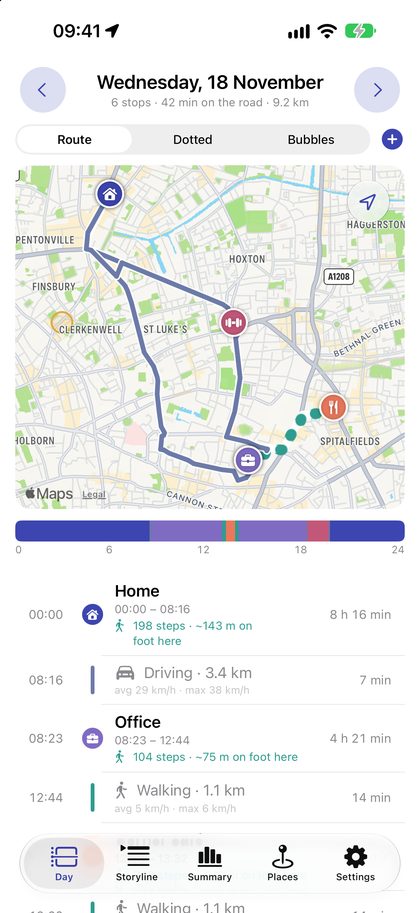
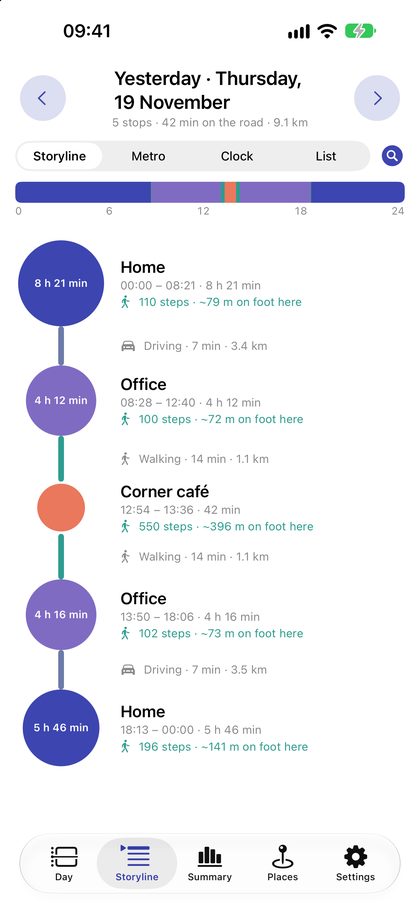
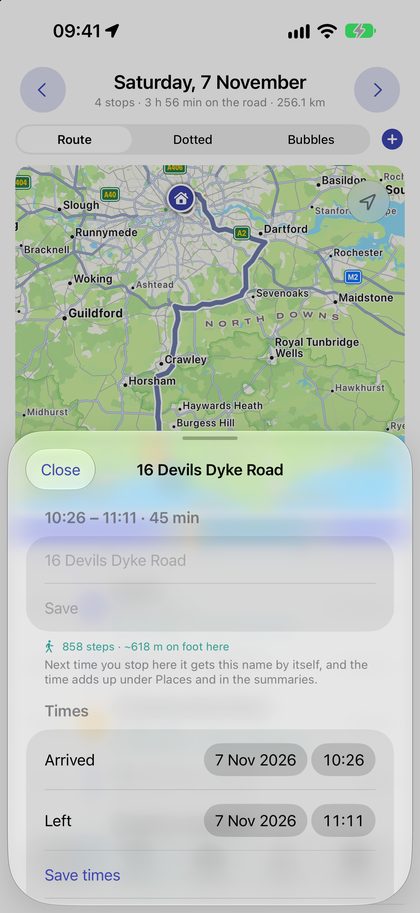
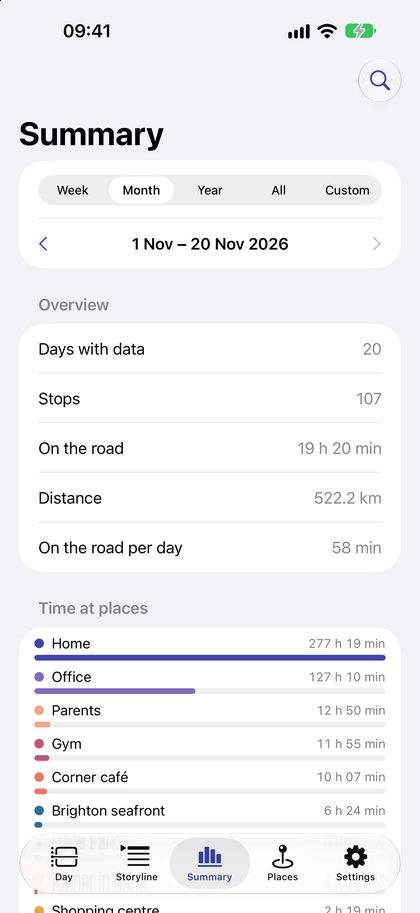
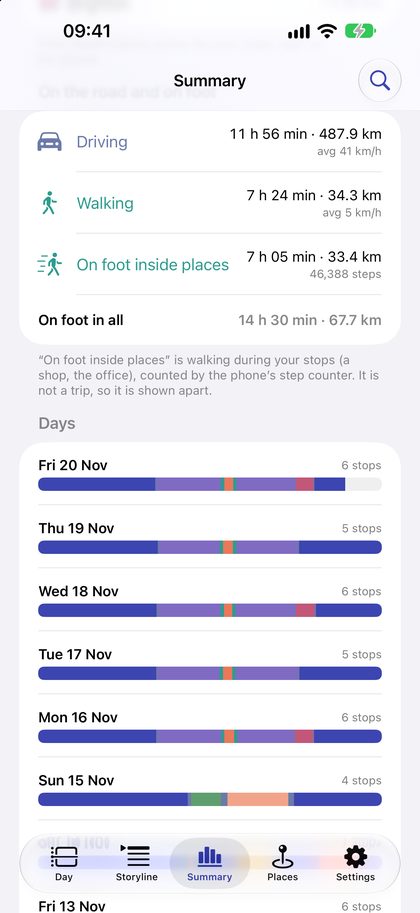
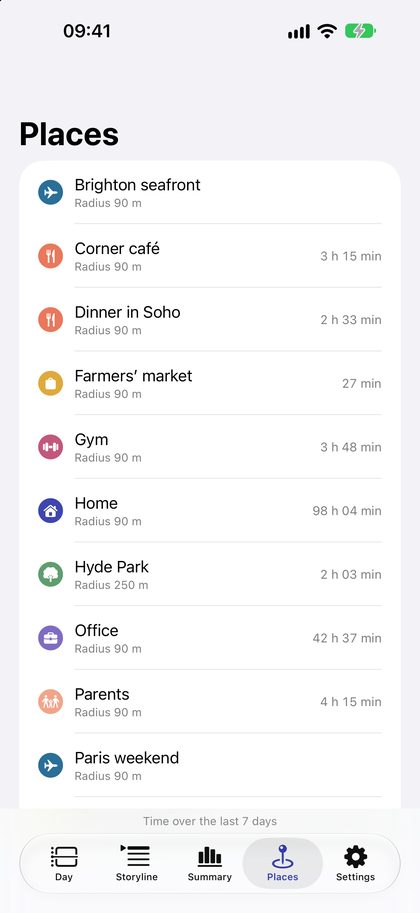
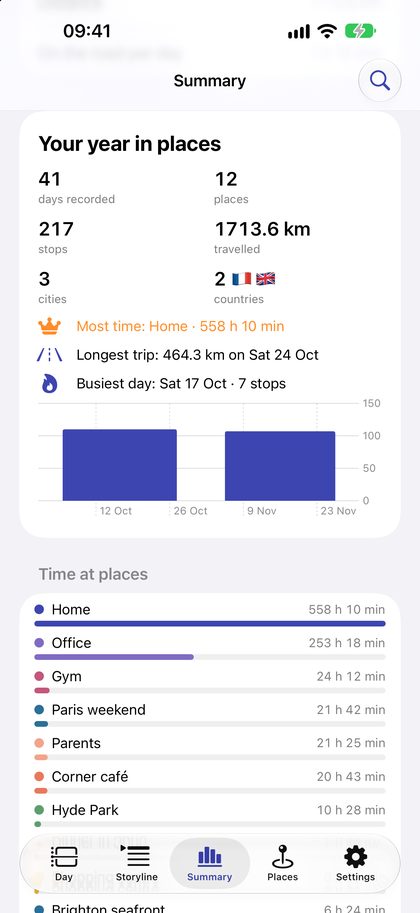
- Widget: on the Home Screen and the Lock Screen (“Office · for 2 h”). Touch and hold the screen › “+” › Daystops.
- To confirm: short or uncertain stops carry “confirm?”; a “Yes” or “It was the road” keeps the day right.
- Your feedback: Settings › Help › Send feedback, “Vote for what comes next” for new features (Daystops PRO for companies included) and “Rate on the App Store”.
Fix anything, with Undo
- Name a stop or a place (once; next time it is recognised).
- It was the road: a stop that was really traffic becomes part of the trip.
- New place on the route: tap the route on the map and choose “Add place here”.
- Stop on the way: tap the trip in the list and press “Stop”. If the car stood still for 3 minutes or more, Daystops suggests that pause with its times and place; give it a name and the trip splits in two. Tap the route on the map where you stopped: you see the time, to the second, when you were there (and each pass, if you went by twice), and From / To are set a minute before and after.
- Radius or outline: set a place’s radius (25–400 m) or draw its outline with your finger, e.g. for a yard or a building site.
- Merge two nearby stops or delete one (“I wasn’t here”).
Battery
Background location uses battery. Daystops turns GPS on only while you move; when you stay put it turns it off and lets iOS wake it when you leave. Even so, your battery may drain faster than before, especially on days with a lot of travel.
| Mode | How it records | Battery |
|---|---|---|
| Balanced | Detailed route while moving, GPS off when still. Default. | Low–medium |
| Detailed | GPS on while you move and through short stops, off after 15 minutes in one place: the most exact hours and routes. | Higher |
| Economy | Only arrivals, departures and big moves; Apple Maps draws the trips along the streets (or straight lines, if you turn off “Trips on the streets”). | Very low |
In Low Power Mode, iOS may thin out positions; some short stops may be missing during those hours.
Privacy in one line
Questions
A stop is missing. Why?
A stop appears after at least 5 minutes within the same radius. Check “Always” and “Precise Location”, that the app wasn’t force-quit, and Low Power Mode. You can also add the stop by hand: tap the route at that spot.
A traffic jam showed up as a place.
Tap the stop and choose “It was the road”. With Motion & Fitness on, this is rare.
I’m changing phones. Will I lose my days?
No, if you move everything from the old phone: a direct iPhone-to-iPhone transfer or an iPhone backup (iCloud or Mac) brings your Daystops days too.
How do I delete everything?
A day: Day › + › Delete this day. A place: Places › the place › Delete place. Every position: Settings › Delete all recordings (your places stay). Deleting the app removes everything from the phone.
What happens after the free trial?
After 3 days, the subscription costs USD 0.99 per month (the App Store shows your local price). Cancel any time in Settings › [your name] › Subscriptions, at least a day before the trial ends. If you don’t continue, recording stops but the days already recorded stay visible; we never delete them.
Contact
In the app: Settings › Send feedback. Or write to mail@objective.srl or use the form on our website. We answer in English and Romanian.